Mastering WordPress CLI: The Ultimate Guide to Command-Line Efficiency
Unlock unprecedented speed and control for managing your WordPress ecosystem. This comprehensive guide dives deep into the powerful WordPress CLI tool, transforming how developers and administrators handle complex tasks, from migrations to performance tuning.
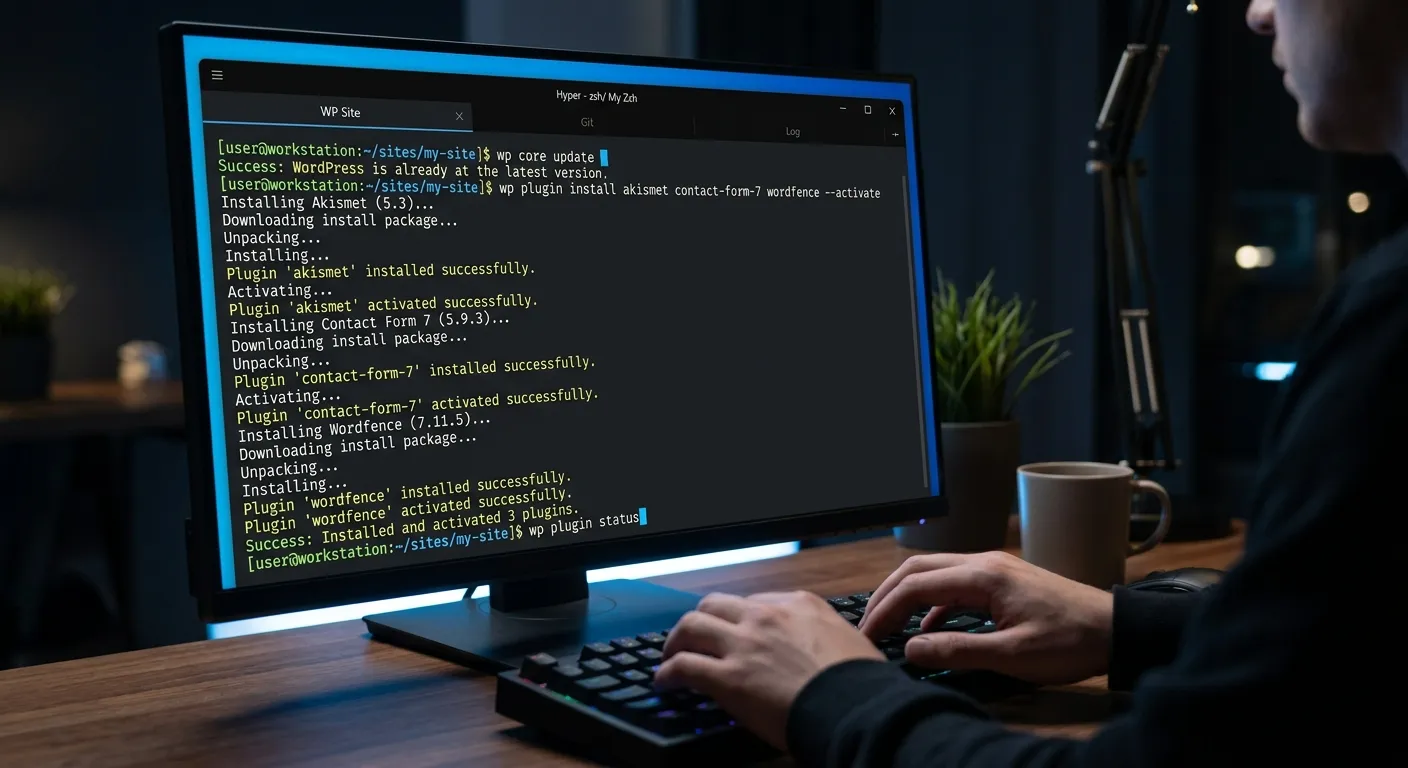
WordPress CLI: A Multi-Category Overview
The WordPress Command Line Interface (WP-CLI) is not a single tool but a versatile suite. Navigate its core functionalities through the categories below.
What is WP-CLI?
WP-CLI is a command-line tool for managing WordPress installations without using a web browser. It provides a programmatic interface for performing virtually any action you can do via the WordPress admin dashboard, but with greater speed, scriptability, and precision. It’s an indispensable tool for developers, sysadmins, and advanced users looking to automate workflows, manage multiple sites, or perform bulk operations.
Born out of a need for developer efficiency, it has grown into a project supported by a vast community. Its architecture allows for extending its core functionality with custom commands, making it adaptable to complex enterprise environments. Understanding WP-CLI is a fundamental skill for anyone serious about professional WordPress management, especially when considering large-scale operations or integrations with modern DevOps pipelines.
Pro-Tip: The Automation Mindset
The real power of WP-CLI isn't in running one-off commands manually, but in scripting them. Combine WP-CLI with bash scripts, cron jobs, or CI/CD pipelines to automate site updates, backups, and content deployments. This transforms maintenance from a manual chore into a reliable, scheduled process.
The Command Arsenal
WP-CLI commands are logically grouped, mirroring WordPress's own structure. Mastery begins with these core groups.
- Core Commands: Manage WordPress itself:
wp core download,wp core update,wp core version. - Plugin & Theme Management: Install, activate, update, and delete:
wp plugin install woocommerce --activate. - Database Operations: Direct interaction with the database:
wp db export backup.sql,wp db search 'old-url.com'. - User Management: Handle users en masse:
wp user create,wp user list --role=administrator. - Post & Content Management: Create, update, delete posts and pages:
wp post generate --count=50.
Each command supports numerous flags for filtering, formatting output (like JSON or CSV for scripting), and performing dry runs. For complex site structures, these commands are far faster than clicking through dozens of admin pages.
Beyond the Basics
Advanced usage involves combining commands, scripting, and integrating with external systems. This is where WP-CLI moves from a convenience to a strategic platform management tool.
Consider a staging-to-production deployment script: It could use wp db export on staging, transfer the file, run wp db import on production, followed by a series of wp search-replace commands to update URLs and configuration. This can be tied into a Git hook or a deployment tool like Jenkins or GitHub Actions.
Another critical advanced concept is multisite management. WP-CLI can run commands across a network of sites, enabling bulk updates, user synchronization, and network-wide plugin management, which is a game-changer for agencies or educational institutions running large networks.
The Broader Ecosystem & Evolution
WP-CLI doesn't exist in a vacuum. Its philosophy of developer-centric, scriptable control is part of a larger trend in content management. While powerful for WordPress, some organizations seek even more flexibility, security, and performance, leading them to explore modern PHP frameworks like Laravel.
This is where solutions like WordPress to Laravel Migration become relevant. Migrating allows teams to retain structured content while gaining the immense power of Laravel's Artisan CLI, a more robust and integrated command-line tool for application management. For developers already comfortable with WP-CLI, the transition to Artisan is natural, opening doors to custom-tailored solutions.
Understanding the limits of your CMS is key. For projects requiring complex custom post types, intricate relational data, or bespoke admin interfaces, a Laravel Custom Development approach, potentially using a Laravel CMS like WordPress in structure, might offer a more sustainable future. WP-CLI excels within WordPress's paradigm, but the ecosystem is evolving beyond it.
Core Benefits & Strategic Advantages of WordPress CLI
Adopting WP-CLI delivers tangible ROI across development, operations, and business strategy. Here’s how.
Unmatched Speed & Efficiency
Execute complex administrative tasks in seconds. Updating 50 plugins via the web GUI can take 15 minutes of clicking and waiting. With WP-CLI, it's one command: wp plugin update --all. This efficiency compounds daily for developers and server administrators, freeing up hours for higher-value work like performance optimisation or feature development.
Automation & Scriptability
Turn repetitive processes into automated, error-free scripts. Backup routines, staging syncs, user onboarding workflows, and bulk content imports can all be codified. This is crucial for maintaining consistency across development, staging, and production environments, a principle that aligns with professional strategic brand building where reliability is non-negotiable. Automation also reduces human error, a major source of website downtime.
Enhanced Security & Reduced Surface Area
By performing updates and management tasks via the command line on a secure shell (SSH), you can often disable or restrict access to the WordPress admin dashboard for certain user roles or IP addresses. This significantly reduces the attack surface, as many common exploits target the admin GUI. Managing a site via CLI is a foundational security best practice for any serious deployment.
Bulk Operations & Data Management
Handle thousands of posts, users, or comments with a single command. Need to assign a new category to 500 old posts? Update author metadata across a legacy site? WP-CLI makes it trivial. This capability is essential for site migrations, content audits, and large-scale rebranding efforts. For even more powerful and structured data handling, some teams eventually explore migrating to a framework like Laravel, using tools detailed in our guide on How To Migrate Your Entire WordPress Site To Laravel.
Developer Experience & Modern Workflow
WP-CLI integrates seamlessly with modern development tools like Composer, Git, and continuous integration/continuous deployment (CI/CD) systems. You can manage WordPress as a dependency, run automated tests, and deploy changes from the command line. This bridges the gap between traditional WordPress development and modern software engineering practices, making it easier to maintain code quality and collaborate in teams.
Scalability for Agencies & Enterprises
For agencies managing hundreds of client sites or enterprises with a large multisite network, WP-CLI is not optional—it's essential. It enables the creation of standardized maintenance and update scripts that can be run across all sites, ensuring compliance and security. When scaling needs outgrow WordPress's core architecture, the logical progression is to a more robust platform. This is where understanding both WP-CLI and its counterpart in other systems, like Laravel's ecosystem (explored in Unlock The Power Of Laravel), becomes a strategic career advantage.
Deep Dive: Installation, Practical Scripts & Migration Context
Installing and Verifying WP-CLI
The installation process is straightforward but varies by server environment. The recommended method is downloading the Phar file directly.
curl -O https://raw.githubusercontent.com/wp-cli/builds/gh-pages/phar/wp-cli.phar
php wp-cli.phar --info
chmod +x wp-cli.phar
sudo mv wp-cli.phar /usr/local/bin/wp
After moving it to a directory in your system PATH, verify the installation by running wp --info. This will display your PHP and WordPress environment details. For shared hosting, you may need to install it within your user directory and call it using the full PHP path.
Expert Insight: Security First
Always run WP-CLI commands as the web server user (e.g., www-data, nginx) to avoid file permission issues. Never run it as root. For sensitive operations, especially wp search-replace, always run a dry run first (--dry-run) and take a database backup (wp db export) immediately before execution.
Practical Script Examples
Let's look at real-world scripts that solve common problems.
1. Automated Staging Sync Script
This bash script exports a staging database, transfers it to production, imports it, and performs a safe URL replacement.
#!/bin/bash
# Variables
STAGING_PATH="/var/www/staging.yoursite.com"
PROD_PATH="/var/www/yoursite.com"
STAGING_URL="https://staging.yoursite.com"
PROD_URL="https://yoursite.com"
TIMESTAMP=$(date +%Y%m%d_%H%M%S)
BACKUP_FILE="prod_backup_$TIMESTAMP.sql"

# 1. Backup Production DB
cd $PROD_PATH
wp db export $BACKUP_FILE

# 2. Export Staging DB
cd $STAGING_PATH
wp db export staging_latest.sql

# 3. Import into Production
cd $PROD_PATH
wp db import $STAGING_PATH/staging_latest.sql

# 4. Search and Replace URLs (with dry-run first)
echo"Running DRY-RUN of search-replace:"
wp search-replace"$STAGING_URL""$PROD_URL" --all-tables --dry-run
read -p"Dry-run looks good? Proceed with actual replace? (y/n)" -n 1 -r
echo
if [[ $REPLY =~ ^[Yy]$ ]]
then
    wp search-replace"$STAGING_URL""$PROD_URL" --all-tables
    echo"Search-replace completed."
    wp cache flush
    echo"Cache flushed."
fi
2. Bulk Content Generation for Testing
Generate realistic test data to stress-test themes or performance plugins.
# Generate 100 posts with lorem ipsum content
wp post generate --count=100 --post_type=post --post_content --post_author=1

# Create 20 pages
wp post generate --count=20 --post_type=page --post_status=publish

# Assign posts to random categories
wp term list category --field=id | xargs -I % wp post generate --count=5 --post_category=%
WP-CLI in the Context of CMS Evolution & Migration
While WP-CLI is powerful, it operates within the constraints of the WordPress architecture. For projects requiring extreme customizability, enterprise-grade security, or complex data relationships, developers often look to modern PHP frameworks. The concept of a command-line interface for CMS management is not unique to WordPress; in fact, it's a standard in frameworks like Laravel (Artisan), which offers even more depth for application building.
This brings us to an important consideration: migration. Tools like WP-CLI can be instrumental in user migration and data export during a platform transition. However, a full migration involves more than just data—it involves rebuilding functionality. This is where specialized services come in. For teams considering this leap, exploring a Laravel CMS Comparison or learning about Migrate WordPress to Laravel Effortlessly can provide a clear roadmap. The goal is to choose the right tool for the long-term project lifecycle, where command-line control is just one piece of the puzzle.
In academic and research contexts, such as those involving a Cms Cispa Saarland project, the need for a secure, auditable, and highly customizable content management system is paramount. While WordPress with WP-CLI can be configured securely, institutions often require a bespoke solution built on a framework like Laravel from the ground up, where every component can be verified and tailored to specific research data management policies.
Frequently Asked Questions About WordPress CLI
Get clear, actionable answers to the most common questions developers and site owners have about WP-CLI.
It is essential for both. Developers use it for local environment setup, automated testing, and deployment scripting. Server administrators and DevOps engineers rely on it for performing secure, batch operations across multiple production sites without GUI overhead, integrating WordPress management into server provisioning scripts (Ansible, Puppet) and monitoring cron jobs. Its utility spans the entire software lifecycle.
It depends on your host's restrictions. Many quality shared hosts provide SSH access (often SFTP-based shell access), which is required. You can typically install WP-CLI in your user home directory. However, if your host only provides a basic control panel with no shell access, you cannot use WP-CLI. We recommend checking with your host's support or considering a hosting provider that explicitly supports developer tools as part of their service, especially if you plan to use advanced WordPress Tools.
Functionally, the result is the same: plugins are updated. However, the process is fundamentally different. The dashboard update requires loading the entire WordPress admin, making numerous HTTP requests, and executing PHP within a web request timeout limit. WP-CLI runs directly via PHP CLI, which is more resource-efficient, not subject to web server timeouts, and can be logged and scripted. For sites with many plugins or on slower servers, WP-CLI is far more reliable and prevents"white screen of death" scenarios that can occur during long web-based updates.
WP-CLI is a fantastic tool for preparing a migration. You can use it to generate clean database exports, list all plugins and themes for audit, and export user data in structured formats. It helps you understand your site's composition. The actual migration to a platform like Laravel, however, requires a tool that understands both source and target data structures. For a seamless transition, consider a dedicated WordPress Migration Tool designed for this purpose, which can handle the complexity of converting WordPress data into a Laravel-based CMS format without manual intervention.
The primary risk is the power it grants. A single command can update, delete, or modify thousands of database records instantly. There is no"undo" button. The mitigation is rigorous practice: always run destructive commands with `--dry-run` first, and always take a backup immediately before execution. Additionally, access to WP-CLI should be controlled as tightly as SSH access. In the wrong hands, it's a potent tool for damage. For mission-critical sites, these risks are a key reason some organizations opt for platforms with more granular, built-in command-line controls and application architecture, such as those offered by a custom Laravel Platform.
Ready to Harness the Power of Command-Line Control?
Mastering WordPress CLI is a game-changer, but implementing it at scale or integrating it into a larger migration strategy requires expertise. Whether you need to automate your current WordPress fleet or are planning a strategic move to a more powerful platform, having the right team is critical.
For WordPress Optimization
Hire a specialist who can architect robust WP-CLI scripts, secure your management workflows, and integrate automation into your DevOps pipeline.
Hire a WP-CLI ExpertFor Strategic Migration
If your project is outgrowing WordPress, you need experts in both ecosystems. Find talent skilled in migrating complex sites to Laravel without losing data or SEO.
Hire a Migration ArchitectPost your project or job requirement today and connect with vetted professionals who can turn command-line efficiency into your competitive advantage. Start hiring now.