Master Composer Clear Cache: Essential Commands for Peak Laravel Performance
Learn how to expertly clear Composer cache to resolve dependencies, optimize your Laravel projects, and hire staff who understand modern development workflows.
Hire Laravel Experts TodayIn the high-performance world of Laravel development, managing dependencies with Composer is a daily task. Yet, a cluttered or corrupted Composer cache can silently cripple your application's performance, lead to baffling"class not found" errors, and stall deployment pipelines. Mastering the Composer Clear Cache commands is not just a troubleshooting step; it's a fundamental skill for maintaining a healthy, scalable codebase. This comprehensive guide dives deep into the why, when, and how of clearing Composer's various caches, providing actionable insights to streamline your workflow and ensure your projects run at their absolute best.
Understanding the Composer Cache Ecosystem
Composer, PHP's indispensable dependency manager, utilizes a sophisticated caching system to dramatically speed up operations. Instead of downloading packages from Packagist every single time you run composer install or composer update, it stores zip archives and metadata locally. While this is a performance boon, this cache can become a source of problems.
💡 Pro-Tip:
Think of the Composer cache like a well-organized warehouse. Over time, old, unused, or incorrectly labeled boxes (cached packages) can accumulate, making it hard to find the correct items quickly. Periodically clearing the cache is akin to conducting an inventory audit.
Common scenarios demanding a cache clear include: encountering version conflicts despite updating your composer.json, packages not updating to their latest available versions, or strange autoloader errors after a deployment. Furthermore, when integrating advanced packages like a sophisticated Laravel Form Builder Package, ensuring a clean cache is crucial for the package's views, configs, and assets to be registered correctly by the framework.
Your Interactive Guide to Composer Cache Commands
Use the tabs below to explore the different cache-clearing strategies, from the basic to the nuclear option.
1. Clear-Cache Command
composer clear-cache
The standard command. It removes all cached files from Composer's cache directory. Use this as your first step when you suspect cached data is causing issues.
2. The Nuclear Option
composer clear-cache --all
A more thorough variant. Some older tutorials suggest composer clearcache (one word), but the hyphenated version is canonical.
3. Vendor Directory Cleanup
rm -rf vendor && composer install
For deeply rooted issues, delete the entire vendor directory and reinstall from scratch. This forces a complete refresh from your composer.lock file.
Scenario: Package Version Staleness
You've updated a version constraint in composer.json, but composer update doesn't fetch the new version. The cache is likely holding onto the old metadata. Run composer clear-cache followed by composer update.
Scenario: Autoloader Errors Post-Deployment
After deploying your Laravel application, you get"Class 'SomeVendorClass' not found" errors. This often happens when the cached autoload files (like vendor/autoload.php and optimized classmaps) are out of sync. Clear the Composer cache and then regenerate Laravel's optimized autoloader with composer dump-autoload -o.
In complex development environments, especially when working with private repositories or Satis, cache issues can be more nuanced. Integrating a Laravel Form Builder Package or other complex packages may require clearing specific caches. For instance, after installing such a package, you might also need to clear Laravel's own caches (php artisan config:clear, php artisan view:clear) for its service providers and blade components to take effect fully.
For teams managing large-scale migrations, such as a WordPress to Laravel migration, a disciplined cache-clearing strategy is part of the broader performance optimisation process. Ensuring a clean Composer state prevents legacy artifacts from interfering with your new Laravel ecosystem.
Step-by-Step Deep Dive: Clearing Cache in a Live Project
Let's walk through a real-world scenario where clearing the Composer cache resolves a critical deployment blocker.
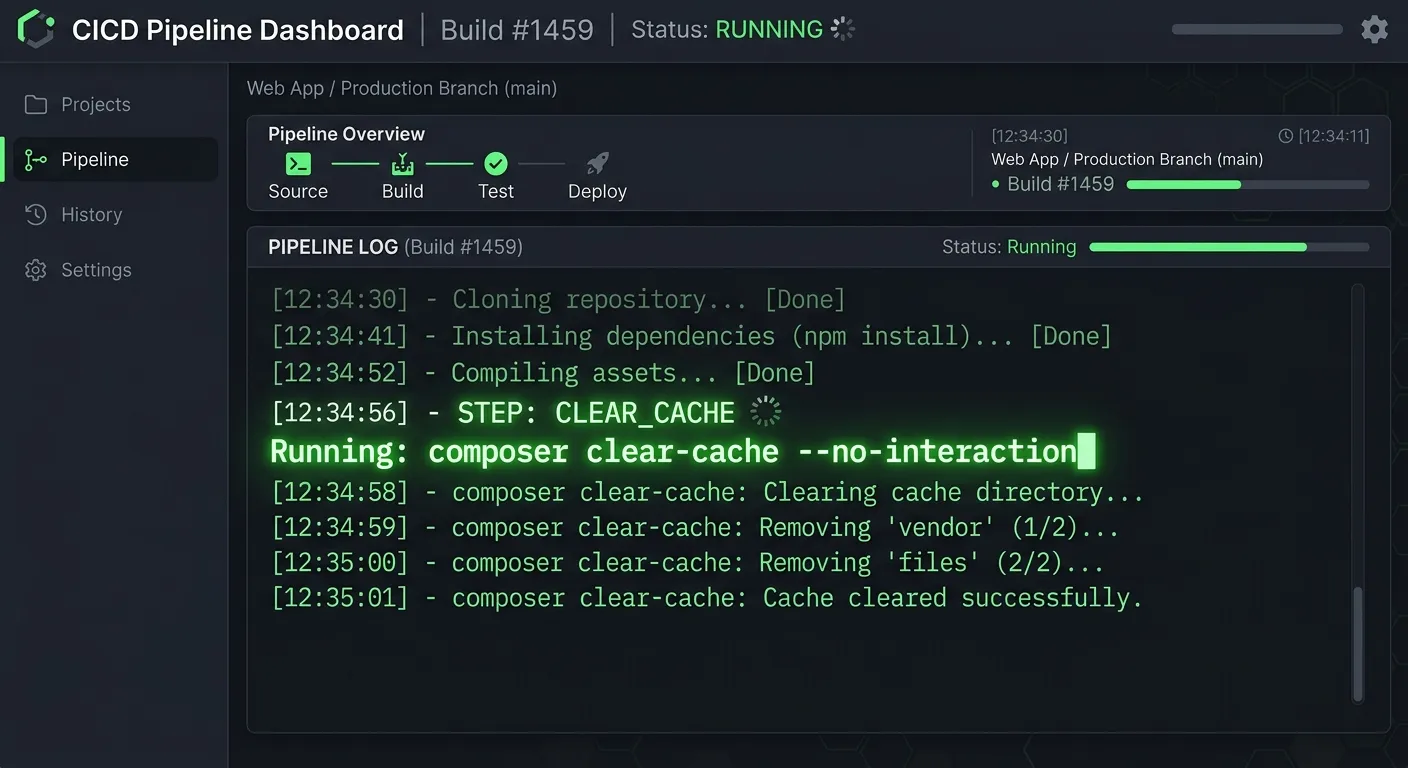
- Identify the Symptom: Your CI/CD pipeline fails during
composer installwith a cryptic error about a package checksum mismatch. - Local Reproduction: Attempt to replicate the issue locally. Run
composer clear-cacheto eliminate local cache as a variable. - Server/CI Action: In your deployment script or CI configuration, add a pre-install cache clearing step:
composer clear-cache --no-interaction. The--no-interactionflag ensures it runs automatically. - Verify with Lock File: Ensure your
composer.lockfile is committed to version control. This file is the single source of truth for your dependencies and is crucial after a cache clear. - Complete Rebuild: As a last resort, script the removal of the vendor directory and a fresh install. This is often part of a blue-green deployment strategy to guarantee cleanliness.
Beyond Composer: Laravel's Own Cache Layers
A proficient Laravel developer understands that"cache" is a multi-layered concept. While Composer handles package cache, Laravel itself has several caches that often need simultaneous attention:
- Configuration Cache:
php artisan config:cachespeeds up your app, but changes require clearing it withphp artisan config:clear. - Route Cache: Similarly,
php artisan route:cacheandphp artisan route:clear. - View Cache: Compiled Blade templates are cached; clear them with
php artisan view:clear. This is especially important after updating a Laravel Form Builder Package that provides custom blade components. - Application Cache: Data stored via the
Cachefacade. Managed via your cache driver (Redis, Memcached, file).
A comprehensive deployment or troubleshooting checklist should include clearing these Laravel caches after any dependency change. This holistic approach to cache management is a hallmark of expert Laravel teams and is a key consideration when you look to hire staff for complex projects. For a broader look at essential tools, our Top Laravel Packages Guide provides essential context.
Best Practices & Automation for Teams
Integrating cache management into your team's workflow prevents"it works on my machine" syndromes and streamlines deployments.
For Development
- ✅ Add
composer clear-cacheas a pre-update script in yourcomposer.jsonfor critical packages. - ✅ Use tools like Laravel Sail or Docker to ensure a consistent, isolated environment where cache can be safely blown away without affecting other projects.
- ✅ Document cache-clearing steps as part of your project's onboarding README.
For Deployment (CI/CD)
- 🚀 Make cache clearing a mandatory first step in your deployment pipeline scripts.
- 🚀 Consider using Composer's
--no-cacheflag in CI environments for absolute predictability, accepting a slight speed penalty. - 🚀 Follow Composer cache clear with Laravel's own
php artisan optimize:clearcommand (Laravel 9+) to clear all framework caches in one go.
For agencies handling client migrations, such as those using our automated WordPress Migration Tool, scripting these cache operations is part of delivering a robust, optimized final product. It transforms a potentially fragile process into a repeatable, reliable service.
Troubleshooting Persistent Cache Issues
Sometimes, the standard commands aren't enough. Here's how to escalate your troubleshooting:
- Manual Directory Deletion: Locate Composer's global cache directory (use
composer config cache-dirto find it). Manually delete its contents on your machine or server. This is more thorough than the command. - Check for File Permissions: Cache corruption can stem from permission errors. Ensure the web server user (e.g., www-data) or your CI user has correct read/write permissions on the cache and vendor directories.
- Network & Proxy Issues: If you're behind a corporate proxy or have network issues, Composer might cache failed download attempts. Clearing the cache and ensuring proper
https_proxyenvironment variables is key. - Private Repository Credentials: For packages from private repos (like Satis or Private Packagist), ensure your
auth.jsoncredentials are valid. Invalid credentials can get cached, leading to persistent failures.
Frequently Asked Questions (FAQ)
Quick answers to common questions about Composer Clear Cache operations.
composer clear-cache removes the *downloaded package archives* and metadata Composer stores globally or locally to speed up future installs. Deleting the vendor folder removes the actual, unpacked PHP code of your dependencies from your specific project. The former is a lighter, faster operation; the latter is a more complete reset but requires a full reinstall from your composer.lock file.
There's no fixed schedule. Clear it proactively when you encounter dependency-related errors, before major deployments, or when switching between project branches with significantly different composer.json files. Many teams automate cache clearing in their CI/CD pipelines for every build to ensure a clean slate.
Only temporarily. The next composer install or update will be slightly slower as packages download fresh from the network instead of the local cache. However, this is a minor, one-time cost that is almost always worth paying to resolve version conflicts or corruption issues. The runtime performance of your Laravel application is unaffected.
First, ensure you've also cleared Laravel's caches: php artisan config:clear, php artisan view:clear, and php artisan cache:clear. Many such packages publish configuration files and views that Laravel caches. Second, check the package's documentation for any required php artisan commands (e.g., php artisan vendor:publish). Finally, verify the package's service provider is correctly registered in your config/app.php.
Yes, frequent or bizarre cache corruptions can indicate underlying issues: unreliable network connections, failing disk drives, incorrect filesystem permissions, or even conflicts between multiple versions of PHP or Composer on the same system. Standardizing your team's environment using tools like Docker or Laravel Homestead, as explored in our guide to Unlock The Power Of Laravel, can eliminate these variables and is a strong reason to hire staff with containerization expertise.
Conclusion & Next Steps for Elite Performance
Mastering Composer Clear Cache is a non-negotiable skill in the modern Laravel developer's toolkit. It's the first line of defense against a host of elusive bugs and performance hiccups, ensuring your dependency management is precise and predictable. From integrating complex packages to executing flawless user migration scripts within a newly built Laravel platform, a clean Composer state is the foundation.
By adopting the proactive practices and automation strategies outlined here, you elevate your development workflow from reactive troubleshooting to strategic, repeatable operations. This level of technical discipline is what separates functional teams from high-performing ones. Whether you're an agency optimizing client sites or a product team scaling an application, this knowledge is critical.
Ready to Build with Precision?
Mastering tools like Composer is just the start. To build truly robust, high-performance Laravel applications, you need the right team. Whether you're migrating from WordPress or building a new platform from scratch, having experts who understand these nuances is key.
Explore more about building a superior web presence with our Strategic Brand Building Guide and our deep-dive into Core Features That Set Waravel Apart.