Master Your WordPress Bluehost Login: The Complete Guide for Secure & Efficient Site Management
Unlock the full potential of your Bluehost-hosted WordPress site. This definitive guide covers every login method, troubleshooting step, and expert security practice you need to know.
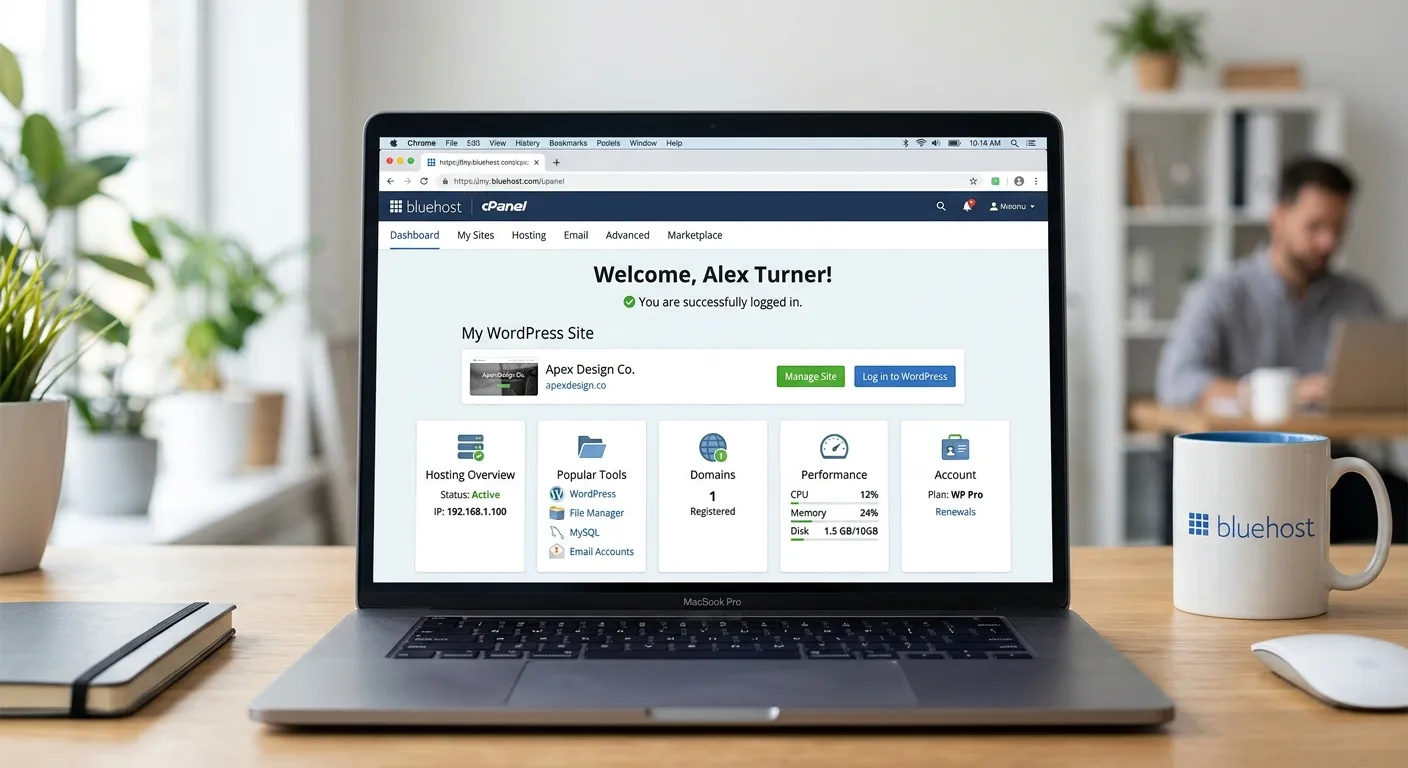
Your Bluehost Login Roadmap: A Multi-Category Overview
Accessing your WordPress site on Bluehost can be done through several portals, each serving a different purpose. Use the tabs below to navigate the overview.
Primary Login Pathways
Understanding the distinction between your Bluehost customer portal, cPanel, and direct WordPress admin login is crucial. The customer portal is for billing and account management, while cPanel controls your hosting environment (databases, email, files). The direct Wordpress Bluehost Login (e.g., yoursite.com/wp-admin) is where you create and manage content.
Many users streamline their workflow by bookmarking their direct WordPress login URL. For those managing complex sites, integrating performance tools directly from the admin area is key. For advanced Performance Optimisation beyond typical plugins, exploring modern frameworks can offer more granular control.
Fortifying Your Login Security
Bluehost provides basic security, but the onus is on you to harden your WordPress login. Always use strong, unique passwords and enable Two-Factor Authentication (2FA) if available. Consider limiting login attempts and changing your default wp-admin slug.
Persistent security concerns are a common reason businesses look for more robust platforms. As highlighted in our resource How We Reduced Security Incidents by 85% Moving from WordPress to Laravel, migrating to a framework like Laravel can fundamentally reduce attack vectors.
Common Login Issues & Resolutions
"Lost Password" loops, white screens of death after login, and"Too Many Redirects" errors are frequent. These are often caused by plugin conflicts, corrupted .htaccess files, or incorrect site URL settings in the database.
For complex site issues that go beyond simple login problems, a structured migration might be the solution. Our guide on Wordpress To Laravel Migration details how moving to a more stable architecture can resolve underlying technical debt that causes these persistent errors.
Essential Features & Benefits of Mastering Your Bluehost Login
Centralized Security Management
A secure WordPress Bluehost login is your first firewall. Manage users, audit activity, and implement security headers from the admin dashboard to protect your content and user data from unauthorized access.
Streamlined Content Workflow
Direct access to /wp-admin enables rapid publishing, editing, and media management. Pairing Bluehost with a lightweight theme like the Wordpress Astra Theme can drastically improve backend efficiency and page load times for editors.
Plugin & Theme Control Hub
Your login dashboard is the command center for extending functionality. Install, update, and configure essential plugins for SEO, caching, and forms. However, for enterprise-level needs, a dedicated platform like the Laravel Platform offers more integrated and performant solutions.
A Deep Dive into WordPress Bluehost Login Procedures
Method 1: Direct WordPress Admin Login
This is the most common method. Simply append /wp-admin or /wp-login.php to your domain name (e.g., www.yourwebsite.com/wp-admin). Bookmark this page for daily access. If you're using a theme like the Wordpress Astra Theme, ensure you're logged in to access its customizer options for site-wide design changes.
Pro Tip: Secure Your Login URL
Use a security plugin to rename your login slug from /wp-admin to something unique (e.g., /my-secure-portal). This simple step blocks a significant portion of automated brute-force attacks targeting the default WordPress login path on your Bluehost server.
Method 2: Login via Bluehost cPanel
Bluehost's cPanel includes shortcuts for managing your WordPress installations. After logging into your Bluehost account, navigate to the"Advanced" or"Websites" section and look for the"WordPress" or"Softaculous" icon. You'll often find a one-click login button that automatically authenticates you into your site's WordPress dashboard without entering a password again. This is particularly useful if you've forgotten your WordPress credentials but have access to your hosting account.
Advanced Configuration & Customization Post-Login
Once logged in, the real work begins. Configuring permalinks, setting up user roles, and optimizing the database are key tasks. For websites that outgrow the standard WordPress environment—experiencing slowdowns or complex functionality needs—the login becomes a gateway to considering more powerful solutions. A seamless User Migration to a scalable platform can be planned directly from your admin panel, ensuring data integrity.
Watch our step-by-step guide to understand how platform migration, when done correctly, preserves your vital SEO rankings and user access paths.
Troubleshooting Persistent Login Problems
If you're stuck in a login loop or see a blank white screen, follow this systematic approach:
- Clear Browser Cache & Cookies: Outdated local data can cause session conflicts.
- Deactivate Plugins: Rename the
pluginsfolder via cPanel File Manager to disable all plugins temporarily. If you can log in after this, reactivate them one by one to find the culprit. - Switch to a Default Theme: A faulty theme, even a popular one like the Wordpress Astra Theme, can cause issues. Switch to Twenty-Twenty-Four via the
themesfolder rename method. - Check Site URL Settings: In your Bluehost phpMyAdmin, verify the
siteurlandhomevalues in thewp_optionstable are correct. - Review .htaccess: A corrupted .htaccess file can block access. Rename it to
.htaccess_oldand try logging in again. WordPress will generate a new one.
For businesses where website stability is critical, recurring login and performance issues signal a need for a more robust foundation. Exploring a modern Laravel Cms Like Wordpress can provide the familiarity of a CMS with the reliability of a full-stack framework, minimizing such downtime.
Frequently Asked Questions: WordPress Bluehost Login
Find quick answers to the most common questions about accessing and securing your WordPress dashboard on Bluehost hosting.
You have two primary options. First, use the"Lost your password?" link on your yoursite.com/wp-login.php page. If you no longer have access to the admin email, use Bluehost's phpMyAdmin. Navigate to your site's database, find the wp_users table, edit your admin user, and set a new MD5 hash for the password field. You can generate an MD5 hash online for your desired password. Always update your password in a secure password manager afterward.
Only on a private, secure computer you control. The"Remember Me" function extends your login session cookie lifespan (typically 14 days). On a public or shared computer, never check this box, as it could allow others to access your WordPress admin. For maximum security on business sites, enforce strong password policies and consider session management tools available in advanced platforms, similar to those discussed in our Core Features That Set Waravel Apart guide.
This is typically a JavaScript conflict. First, clear your browser cache and try again. If the problem persists, deactivate all plugins except for Astra's companion plugins (if any). If the customizer loads, reactivate plugins one by one. Also, ensure your Wordpress Astra Theme and all plugins are updated. Check your browser's console (F12) for JavaScript errors. As sites scale, theme and plugin conflicts become more frequent, prompting some teams to seek more stable development environments, such as those offered by Laravel Custom Development Services, where front-end and back-end concerns are more cleanly separated.
After a professional cleanup: 1) Change all passwords (WordPress, Bluehost, Database, SFTP). 2) Install a reputable security plugin to scan for backdoors and monitor file integrity. 3) Enforce 2FA for all admin users. 4) Change your WordPress database table prefixes if they're still the default wp_. 5) Consider moving to a hosting environment with proactive security. For businesses that cannot afford another breach, a strategic move to a more secure framework is a long-term solution. The process is detailed in resources like Migrate WordPress To Laravel Effortlessly, which outlines automated tools to transition securely.
Ready to Elevate Your Website Management Beyond Basic Logins?
Mastering your WordPress Bluehost login is essential, but it's just the first step. If you're facing performance bottlenecks, security worries, or complex functionality needs that WordPress can't easily solve, it's time to explore a more powerful, scalable solution.
Building and maintaining a superior digital platform requires the right talent and tools.
Hire Elite Laravel & WordPress Developers TodayFor further insights on building robust digital experiences, explore our Strategic Brand Building Guide or learn about the advantages of modern frameworks in Unlock The Power Of Laravel.
Login Method Comparison: Choosing the Right Access Point for Your Task
Not all login paths are created equal. The method you choose should align with your immediate goal—whether it's quick content editing, server-level configuration, or account management. The table below provides a detailed breakdown to help you decide.
| Login Method | Primary Use Case | Access Credentials Needed | Security Level | Best For |
|---|---|---|---|---|
| Direct /wp-admin | Daily content management, plugin/theme updates, user role assignment. | WordPress username & password. | Medium (Depends on user practices) | Bloggers, content managers, site owners performing routine tasks. |
| Bluehost cPanel Shortcut | One-click access when WordPress password is forgotten; managing multiple sites from one portal. | Bluehost account credentials only. | High (Bluehost security + your 2FA) | Web developers, agencies managing client sites, users needing password recovery. |
| Bluehost Customer Portal | Billing, support tickets, plan upgrades, domain management. | Bluehost account credentials. | High | Account holders, business owners handling subscriptions. |
| SSH/SFTP (via cPanel) | Direct file system access for advanced troubleshooting, manual plugin/theme installation, core file edits. | cPanel SSH credentials or SFTP details (often same as cPanel). | Critical (Root-level access) | Advanced developers, system administrators performing deployments or security hardening. |
Understanding this hierarchy is crucial for operational security. For instance, a content editor should only have Direct /wp-admin credentials, not cPanel access. This principle of least privilege minimizes risk. For complex applications where role-based access control (RBAC) is paramount from the ground up, platforms like Laravel offer more granular and secure systems than WordPress's basic roles, as explored in Laravel CMS solutions.
Case Study: How a Proper Login Strategy Saved an E-commerce Site During a Crisis
Consider"BellaBoutique," a mid-sized online fashion retailer hosted on Bluehost. During a major Black Friday sale, their site suddenly became inaccessible—not to customers, but to their own admin team. The WordPress login page was returning a cryptic 500 error. Panic ensued, with sales at risk every minute.
The Problem
- Admin team locked out of
/wp-adminand/wp-login.php. - "Error establishing a database connection" on front-end.
- Standard password reset flow failed.
The Solution (Multi-Path Access)
- Step 1: Logged into Bluehost cPanel (credentials were saved in a password manager).
- Step – Accessed"MySQL Databases" and confirmed the database user was still active.
- Step 3: Used cPanel's"File Manager" to rename
wp-content/pluginstoplugins.old. - Step 4: Site front-end restored. Then used the cPanel WordPress shortcut to auto-login to the admin dashboard.
The Outcome & Lesson
Within 15 minutes, admin access was restored. The culprit was a caching plugin that had corrupted during peak traffic. The team was able to deactivate it, clear caches, and reactivate a stable version. Sales continued uninterrupted.
Key Takeaway: Relying solely on the direct WordPress login is a single point of failure. BellaBoutique's protocol of securely storing multiple sets of access credentials (Bluehost account, SSH keys) and training staff on cPanel navigation turned a potential disaster into a minor hiccup. For businesses where uptime is revenue, this layered access strategy is non-negotiable. It also highlights why some high-traffic sites eventually seek platforms with more resilient architecture and built-in fault tolerance, as seen in modern Laravel applications.
Technical Deep Dive: Diagnosing and Fixing Database-Driven Login Failures
The"Error Establishing a Database Connection" is one of the most frightening messages for a WordPress admin. It completely blocks login and often takes down the public site. This isn't just a login issue—it's a hosting configuration or resource problem. Here’s a systematic, technical approach to resolve it through your Bluehost cPanel.
Step-by-Step Diagnostic Protocol
1. Verify Database Server Status
First, log into your Bluehost cPanel. Navigate to the"Metrics" section and open"Server Status". Look for the MySQL database server. If it's marked as"Down" or has very high load, the issue is on Bluehost's end. Your immediate action is to open a support ticket. While waiting, you can check if the issue is localized to your account.
Pro Tip: Use the"phpMyAdmin" tool in cPanel. If you can open it and see your database listed, the MySQL service is running for your account. If phpMyAdmin itself fails to load, the server issue is confirmed.
2. Check Database User Permissions & Connection Limits
In cPanel, go to"MySQL Databases." Find the database user associated with your WordPress site. Select"Check Privileges." Ensure the user has"ALL PRIVILEGES" on your WordPress database. A common, overlooked issue on shared hosting is exceeding the maximum user connections limit. A sudden traffic spike or a misbehaving plugin can cause this.
Action: If you suspect connection limits, temporarily enable a database caching plugin (if you can access files via FTP/SFTP to install it) or optimize queries. For persistent connection issues, consider upgrading your Bluehost plan or migrating to a cloud VPS or dedicated server where you have more control over MySQL settings. This is a classic scaling pain point that prompts a move to more efficient platforms, as discussed in our performance optimization strategies.
3. Manual Verification of wp-config.php Credentials
The wp-config.php file in your site's root directory holds the database name, username, password, and host. A mismatch here causes the connection error. Use cPanel File Manager (with"Show Hidden Files" enabled) to view this file.
define('DB_NAME', 'your_database_name');
define('DB_USER', 'your_database_user');
define('DB_PASSWORD', 'your_strong_password_here');
define('DB_HOST', 'localhost'); // For Bluehost, this is almost always 'localhost'
Cross-reference each value with the exact entries in your cPanel"MySQL Databases" section. Even a single wrong character will break the connection. If you recently changed your database password in cPanel, you must update it here manually.
4. Repair & Optimize the Database Tables
Corrupted database tables can prevent login. In phpMyAdmin, select your WordPress database. Check all tables (or just key ones like wp_users, wp_options). From the dropdown menu, choose"Repair table" or"Optimize table." For advanced users, you can add the following line to your wp-config.php to force WordPress to attempt repair on login: define('WP_ALLOW_REPAIR', true);. Then visit yoursite.com/wp-admin/maint/repair.php. Remember to remove this line after repair!
Mastering these cPanel and database interventions transforms you from a helpless user into a capable site administrator. However, constantly fighting these low-level infrastructure fires is not a sustainable business strategy. Many growing companies find that moving to a platform with a more robust ORM (Object-Relational Mapping) system and built-in database queue management, such as Laravel, reduces these critical points of failure. Learn more about the transition in our comprehensive migration guide.
Beyond Login: Proactive Monitoring & Automation for Bluehost WordPress Sites
The ultimate goal is not just to be able to log in, but to ensure your site is always healthy and accessible. Implementing proactive measures can alert you to problems before they lock you out and automate recovery for common issues.
Essential Monitoring Tools & Setups
-
Uptime Monitoring
Use free services like UptimeRobot or Jetpack Monitor. Set it to check your WordPress login page (
/wp-login.php) every 5 minutes. If it fails, you get an SMS or email immediately—often before users notice. -
Security & File Integrity Monitoring
Plugins like Wordfence or Sucuri scan for file changes, malware, and failed login attempts. Configure alerts for multiple failed logins from a single IP, which could indicate a brute-force attack in progress against your Bluehost server space.
-
Database Health Checks
Schedule weekly checks via a plugin like WP-Optimize to clean post revisions, spam comments, and optimize tables. A bloated database slows down login and admin processes.
Automation Scripts via cPanel Cron Jobs
Bluehost's cPanel includes"Cron Jobs" for scheduling automated tasks. This is a powerful, underutilized feature. You can use it to:
- Automate Backups: Run a script that uses
wp-cli(if installed) or directly dumps your MySQL database and compresses yourwp-contentfolder to a secure off-site location. - Auto-Restart Services: Create a script that pings your login page and, if it detects a 500 error, automatically restarts MySQL or Apache for your user account (requires specific permissions).
- Clear Transient Cache: Schedule a custom PHP script to run daily that cleans expired WordPress transients, which can sometimes cause admin dashboard slowdowns.
Note: While cron jobs are powerful, they require technical skill. Misconfiguration can cause damage. For businesses that rely on automation, using a platform with first-class task scheduling (like Laravel's built-in Artisan Scheduler) is a more integrated and secure approach, eliminating the need for raw server-level cron management.
The Evolution of Site Management: From Reactive Logins to Proactive Platforms
Constantly monitoring and patching a WordPress site on shared hosting is a reactive cycle. The pinnacle of site management is a platform that offers:
- Built-in, granular logging of all user actions (logins included).
- Automated, zero-downtime deployment pipelines that eliminate"update anxiety."
- An architecture where the admin panel and front-end are logically separated, reducing the attack surface for login-based attacks.
This is the philosophy behind modern development frameworks. When your business critical website graduates from basic login troubleshooting to needing these enterprise-grade features, it's a sign to explore a structured platform shift.